How do I add teammates to my account?
If this is your first time adding users to your account, you’ll need to create a team first.
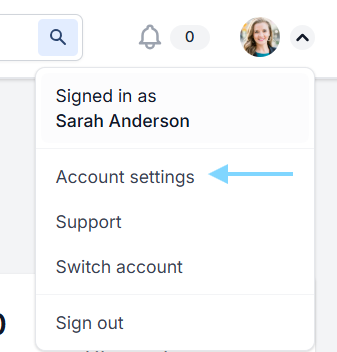
- When you’re logged in, click on the arrow next to your profile picture on the top right corner of your screen.

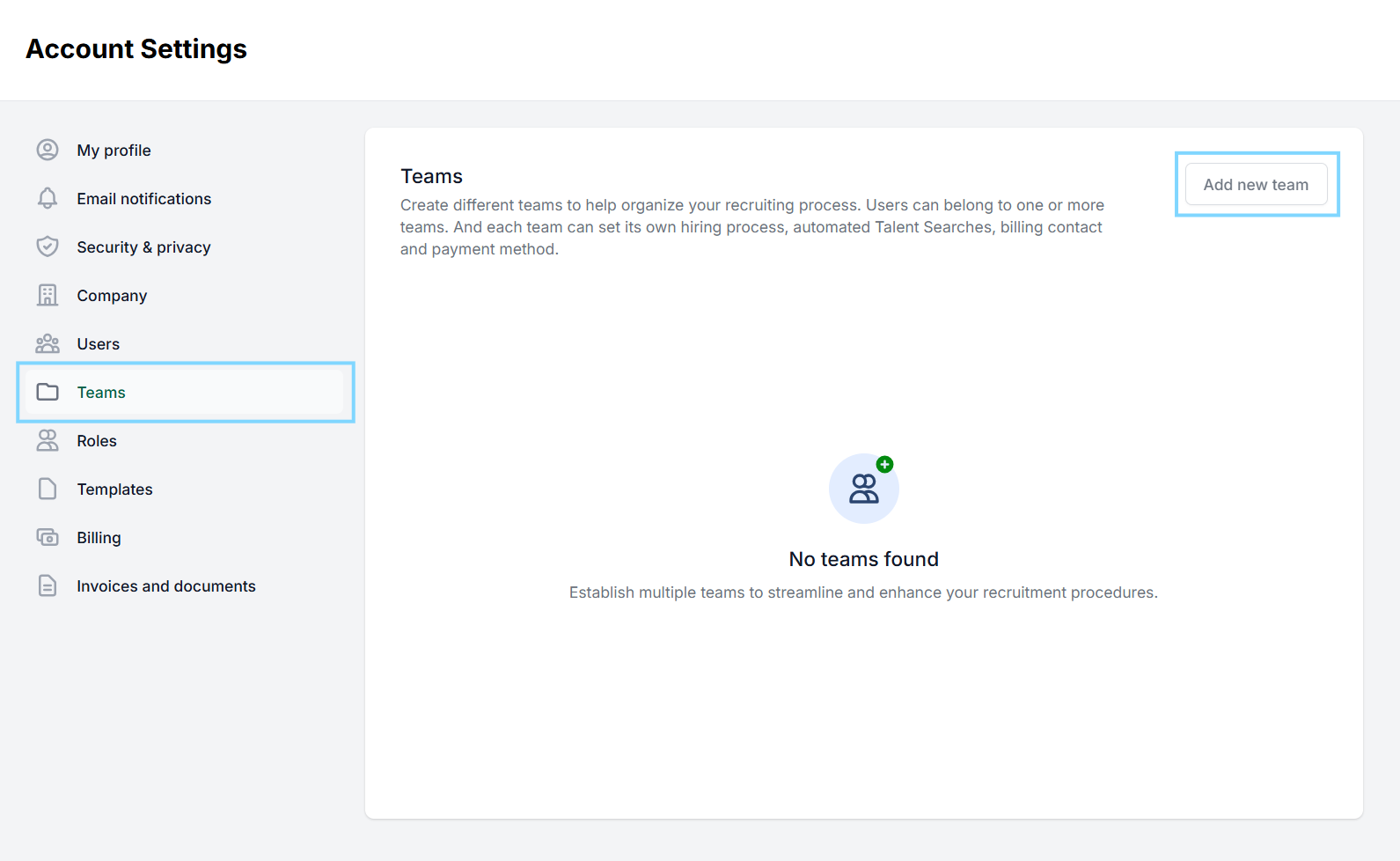
- Head over to Account Settings > Teams.
- Click Add new team to create a new one.

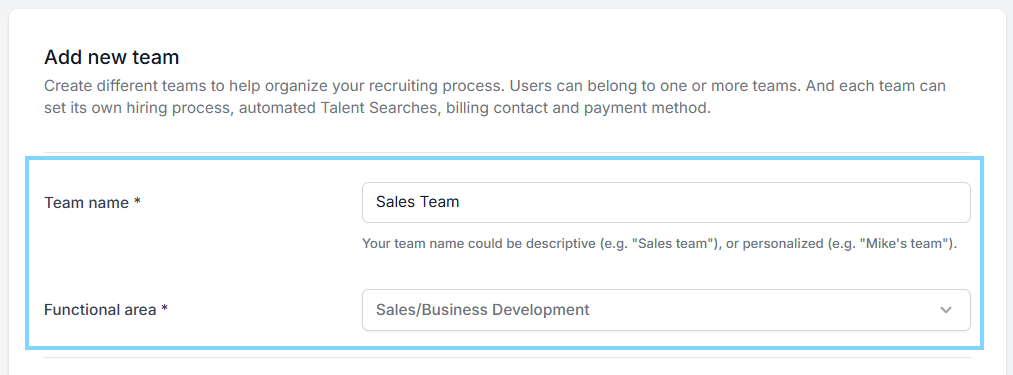
- Enter the team’s name and designate a functional area (HR, Finance, etc.),.

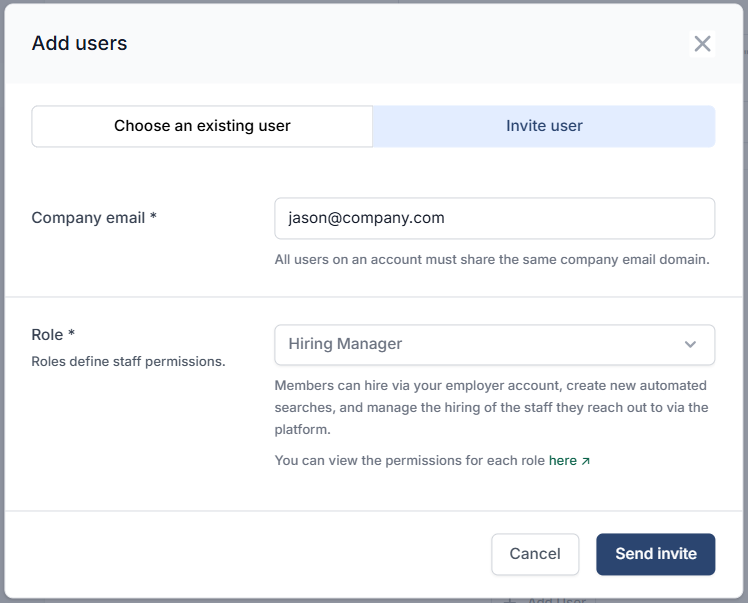
- Click + Add user then head over to Invite user to invite your teammates. Enter their email, assign role permissions, then select Send invite.

- To add users to additional teams, simply repeat these steps for each team.